
How to Create an Open-Book Exam with Respondus LockDown Browser (RLDB): for Student Notes
This guide explains how to set up a quiz in VU Collaborate that uses Respondus LockDown Browser (RLDB) while still allowing students to access their own pre‑loaded PDF notes stored in their personal Locker.
On this page:
- Before you begin – Important Considerations
- Step 1: Add a Locker Link to your quiz
- Step 2: Enable RLDB for your quiz
Before you begin – Important Considerations
Students will:
- Be able to access all their VU Collaborate spaces
- Convert notes to PDF before uploading to the Locker
(via Tools > Locker)
Word documents, cannot be opened in RLDB - Benefit from taking a practice quiz.
In VU Collaborate you must:
- Provide a link to the Locker inside the quiz.
Use this generic link, as it will automatically update in each space,
unlike copy/paste from the locker, which will require updating each block.
NOTE: either copy/paste the link on the text 'Locker' OR ensure the link opens in a new window!
https://vucollaborate.vu.edu.au/d2l/lms/locker/locker.d2l?ou={orgUnitId} - Add VU Collaborate to the allowed domains list in RLDB settings
vucollaborate.vu.edu.au
Step 1: Add a Locker Link to your quiz
1.1 Navigate to the quiz
- On the main menu, select Assessments > Quizzes
- Locate your quiz, open the dropdown menu next to the title, and select Edit.
1.2 Choose where to add the Locker Link
You may add the link to a Section, a Question, or the Quiz Header.
Option 1: Section
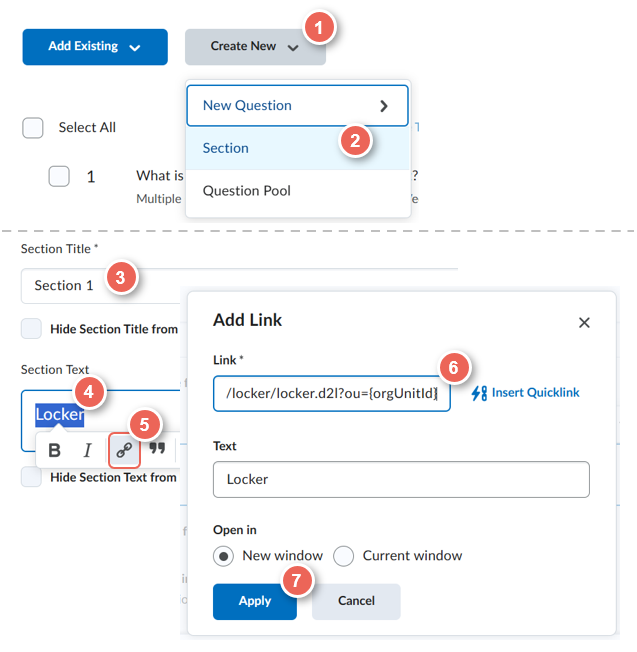 Option 1: Add the Link within a Section (Recommended)
Useful when you want the link highly visible before students begin answering questions.
- Select Create New (1) > Section (2)
- Enter a Section Title (3)
- In the Section Text field type Locker (4), highlight it,
then choose the Add/Edit Link (5) icon. - Paste the generic Locker link
https://vucollaborate.vu.edu.au/d2l/lms/locker/locker.d2l?ou={orgUnitId} (6) - Select Apply.(7)
- Select Save
Note: Sections appear at the bottom of the quiz. To move it to the top:
- Drag and drop the section to the top, or
- Select the section checkbox, then select Move To > Top of the Quiz
Option 2: Question
Option 2: Add the Link within a Question
Useful if access is needed only for specific questions.
- Click the question to enter edit mode.
- In the Question Text field type Locker, highlight it,
then choose the Add/Edit Link icon. - Paste the generic Locker link
https://vucollaborate.vu.edu.au/d2l/lms/locker/locker.d2l?ou={orgUnitId} - Select Apply.
- Select Save
Step 2: enable RLDB for your quiz
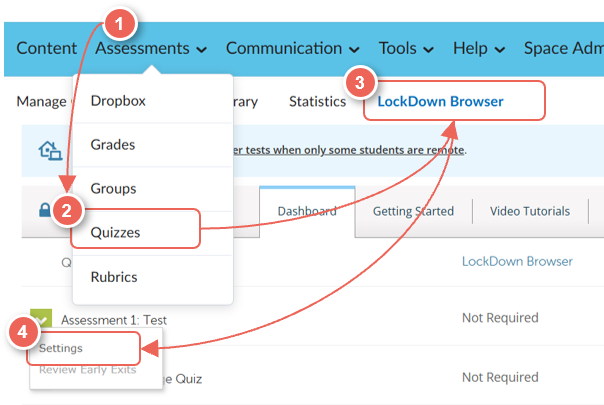 2.1 Open the LockDown Browser Dashboard
- On the main menu, select Assessments (1)
- Then Quizzes (2)
- Select LockDown Browser (3) tab
Allow 15 second to load, and If Respondus requests permission to access your course, select Yes. - From the dropdown arrow before the quiz name, select Settings (4)
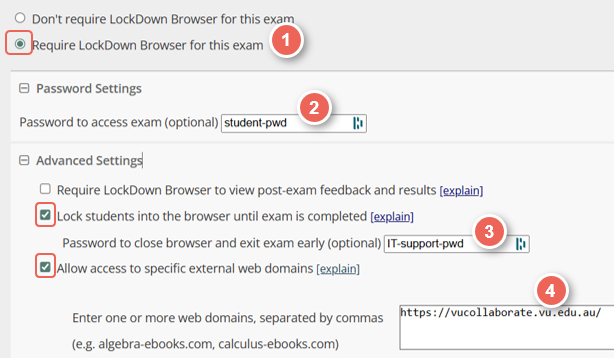 2.2 Select LockDown Browser settings
- Choose Require LockDown Brower for this exam (1)
- Enter a Password (for students) (2) to access the exam
- Open Advanced Settings
- Select Lock students into the browser until exam is completed
- Enter a Password (for staff) (3) to exit the exam early
- Select Allow access to specific external web domains and add:
vucollaborate.vu.edu.au (4) - Select Save + Close to apply your settings