
Creating and editing a page
Use the steps below to create a new page or edit an existing page in your VU Collaborate space.
Create a Page
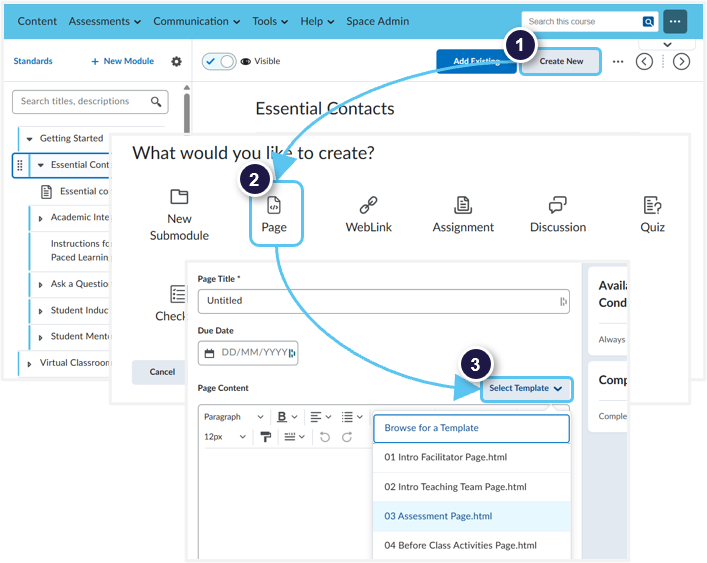
- Open the module where you want to create the page.
- Select Create New.
- Select Page.
- Enter a Title for the page.
- Select the appropriate page template.
Edit a Page
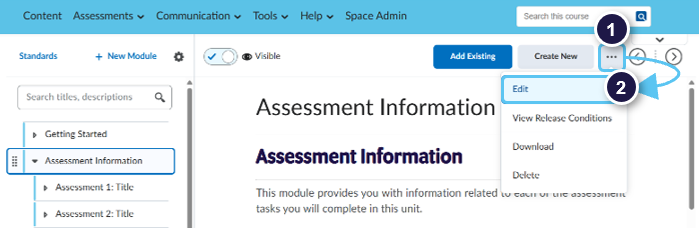
- Open the page you want to edit.
- Select the three-dot (…) menu.
- Select Edit.
Adding content on the page
The page template includes placeholder text and predefined formatting. Before adding your content, take a moment to review the page layout.
- To replace placeholder text, select the text and type your new content.
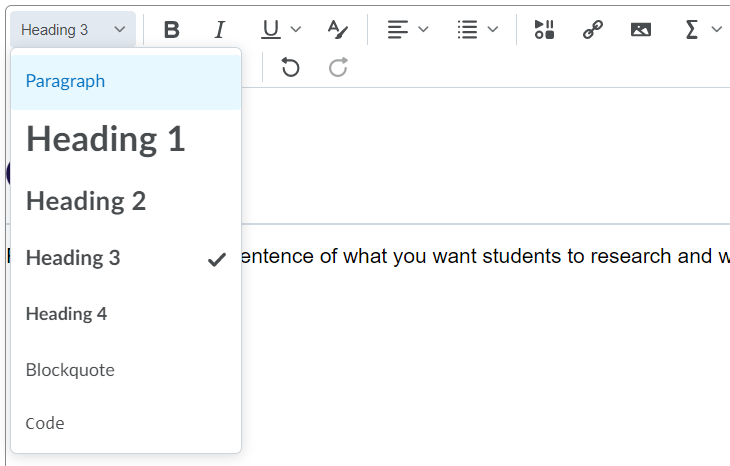
- To change the text style, select the text, then choose the required format from the toolbar.
Copying from Word: When copying content from a Word document, paste it as unformatted text. This prevents unwanted Word formatting from being added to the page. You can then apply the required headings and paragraph styles using the VU Collaborate editor.
Windows: Ctrl + Shift + V or Mac: Command + Option + Shift + V
Windows: Ctrl + Shift + V or Mac: Command + Option + Shift + V
Adding a new paragraph
- Place your cursor at the end of the heading, paragraph or sentence above where you want to add the new content.
- Press Enter to create a new paragraph.
- Type your content, or paste it as unformatted text.
- Windows: Ctrl + Shift + V
- Mac: Command + Option + Shift + V
- Apply the required paragraph or heading style from the toolbar.
Headings
Use headings to organise your content and make the page easier to navigate and accessible.
- Use only one Heading 1 (H1) on the page. This should be the page title.
- Use headings in order to create a clear structure:
- Heading 1 (H1) – page title
- Heading 2 (H2) – main sections
- Heading 3 (H3) – subsections within an H2 section
- Avoid skipping heading levels, for example, going directly from H2 to H4.
- Use heading styles to identify sections, not simply to make text larger or bold.
Editing Classic Template pages
To move headers and/or sections in the Classic Template pages, watch Editing a Webpage in VU Collaborate for some tips and tricks.
Save
As you work, select Save regularly to save your updates without leaving the page.
When you have finished editing, select Save and Close to save your changes and return to the module.
