


Adding links on a page
Links can be added to a Page to connect students to content within your VU Collaborate space or to resources outside VU Collaborate.
There are two types of links:
- Links to content within your VU Collaborate space, such as activities, discussions or other content.
- External links, such as websites, videos or resources outside VU Collaborate.
Watch Adding links to a Page, or view the Full Guide for step-by-step instructions.
On this page:
- Navigate to Page
- Link to content in your VU Collaborate space
- Link to an external resource
- Check or change how a link opens
Navigate to a Page
- Go to the Page you want to update.
- Enter edit mode:
- New View: From the three-dot (…) menu, select Edit.
- Classic View: Open the page options menu beside its title, from the list, select Edit
Link to content in your VU Collaborate space
Use Insert Quicklink to link directly to content or activities within your VU Collaborate space, such as a discussion, rubric or other content.
- Place your cursor where you want to add the link, or highlight the text you want to use as the link.
- Select Insert Quicklink (link icon on the tool bar).
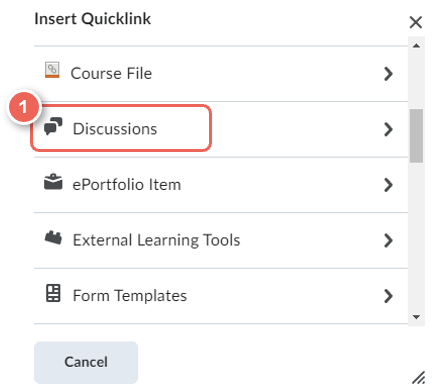
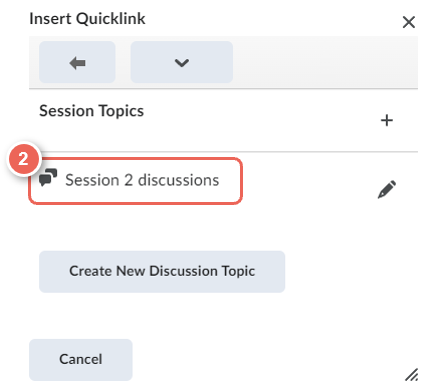
- Select the relevant content type, then choose the item you want to link to.
For example, Discussion > Session 2 discussion topic.
Link to an external resource
Use Add Link to link to a website, video or other resource outside VU Collaborate.
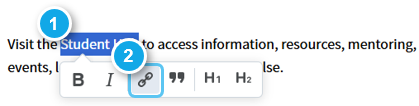
- Highlight the text you want to use as the link.
- Select Add Link (link icon).
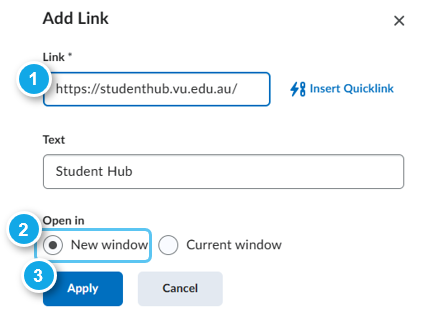
- Paste the URL for the external resource.
- Check that the link is set to open in a New window.
- Select Apply.
Check or change how a link opens
Links added to a Page may be set to open in a new window by default. Always check external links to make sure they open in a new window.
To check or change an existing link:
- Select the existing link on the Page.
- Select Edit Link (pencil icon).
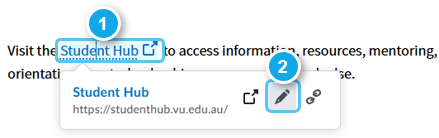
- Under Open in, select New window.
- Select Apply.
- When you have finished editing the Page, select Save and Close.

Before you finish
Check the links on your Page to make sure they:
- open the correct content or resource
- still point to the correct VU Collaborate item
- open in a new window when linking to an external resource.
Remember to review Quicklinks whenever linked content is replaced or recreated.
Explore our other guides to learn more about creating and managing content in VU Collaborate.