Padlet

Collaborate better with beautiful boards, documents, and webpages that are easy to read and fun to contribute to.


Using Padlet

Padlet is an online tool that allows students to share text, images, links, videos, and more. It can be shared with your students or colleagues by embedding the padlet on a VU Collaborate page, scanning a QR code, or providing them with the unique Padlet link. 

Staff request a Padlet account

Send your request with your eNumber.

This email address is being protected from spambots. You need JavaScript enabled to view it.

Students

Create a free account (with up to 3 Padlet boards)

Students


On this page:


Padlet Migration – What You Need to Know

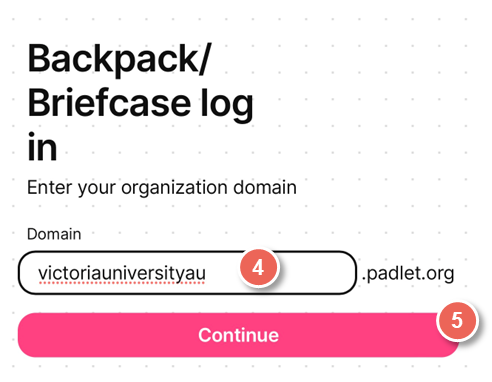
On Saturday, 20 December, VU Padlet accounts will be migrated from victoriauniversityau.padlet.org to padlet.com.
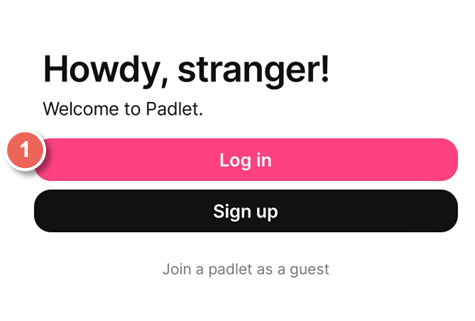
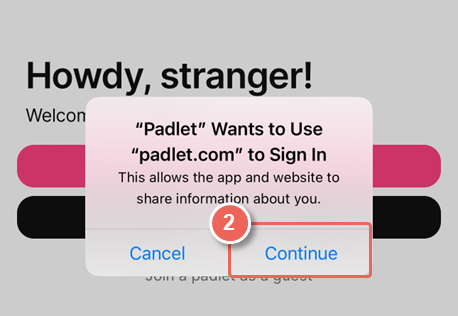
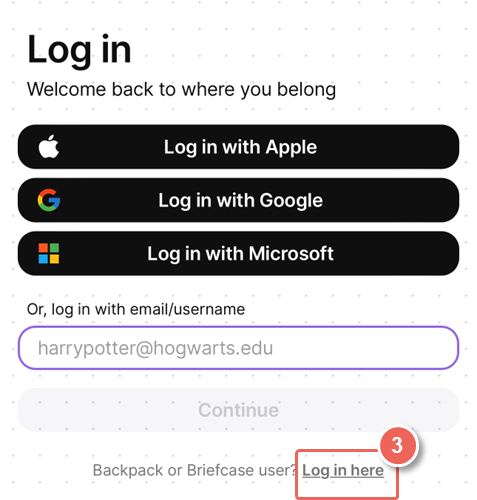
After this change, you’ll be redirected to https://www.padlet.com when logging in. From there, you’ll be able to switch between your personal Padlet account and your VU Padlet account within the Padlet interface.

switch between Padlet accounts


Will my existing Padlets and links still work?
Yes. All existing VU Padlets that are linked or embedded in VU Collaborate or other platforms will continue to work via automatic redirection.
Any new Padlet links will point to padlet.com.

How will my username and password be affected?

  • If you’ve only ever had a VU Padlet account, continue using the same username and password at padlet.com.
  • If you already have a personal Padlet account using your VU email address, please use the password associated with that personal account.
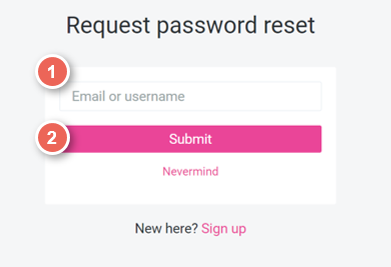
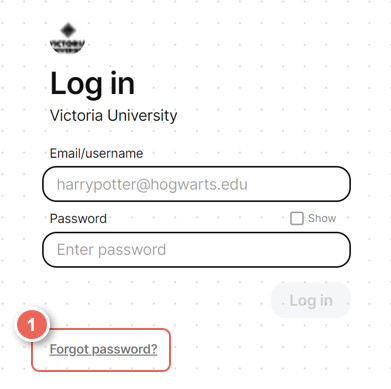
  • If you’re unsure or run into issues, you can reset your password using “I forgot my password” on the Padlet login page.

Creating and sharing a Padlet board

Watch Creating and sharing a Padlet board, or view the guide in full text view.


How to reuse and update Padlet boards between deliveries

Watch How to reuse and update Padlet boards between deliveries, or view the guide in full text view.


Answer common Padlet questions

Click on each tile below for more details and instructions.


Admin Only